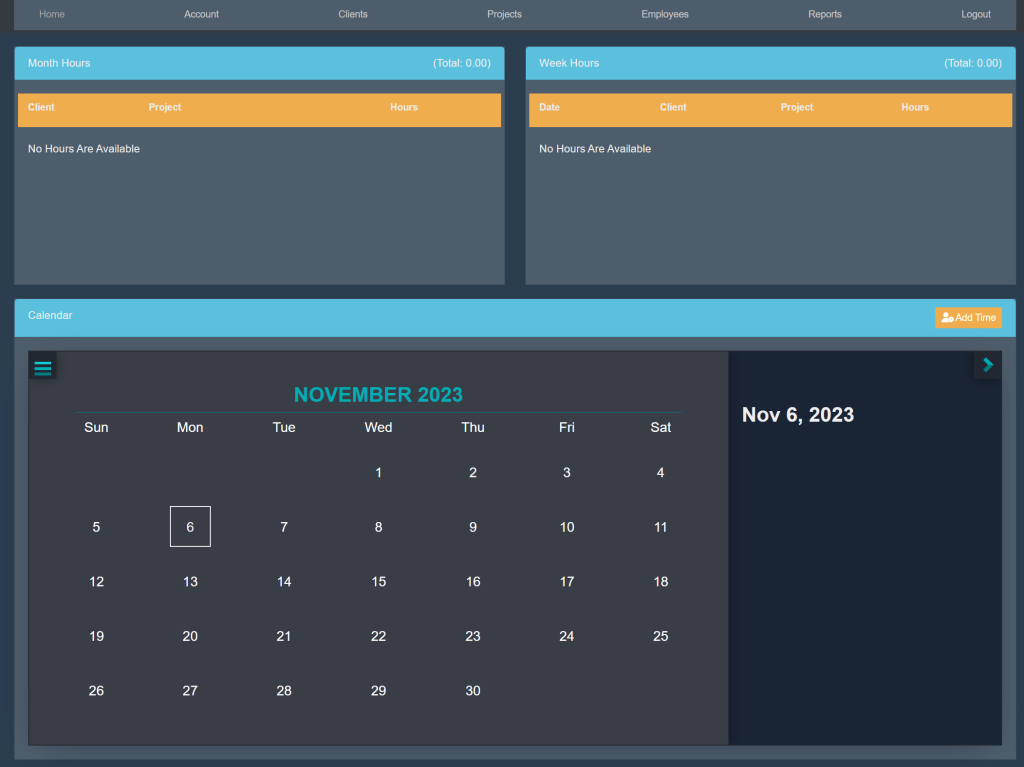
At the top of the page, select Employees. This will take you here:
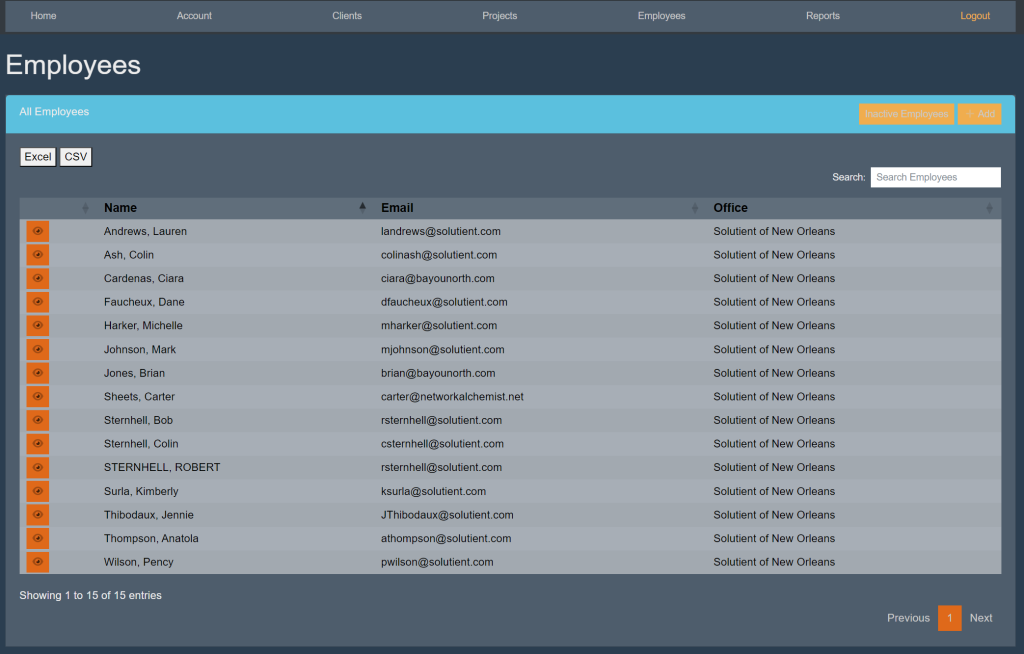
Within the All Employees box, select the orange button titled ‘Inactive Employees’.
Then, locate the search bar. Begin typing in the employees’ name. The list will start to eliminate other employees’ that do not match. For example:
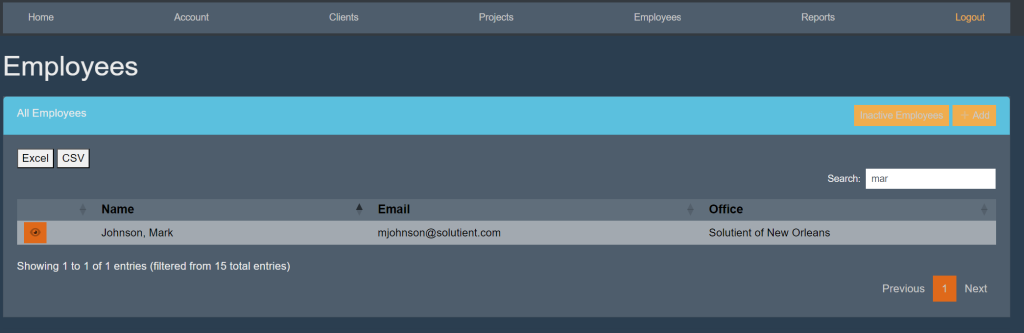
Select the employee’s name. This will take you here:
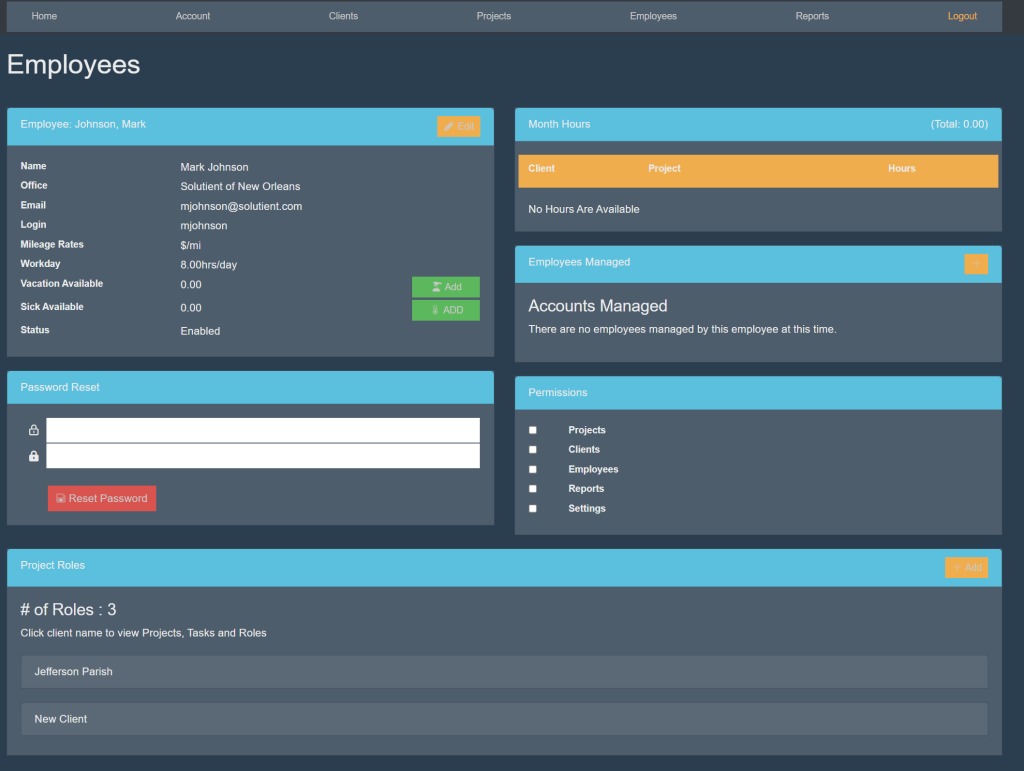
Locate the box titled ‘Employee’. Then, select the orange button titled ‘Edit’. Your page will look like this:
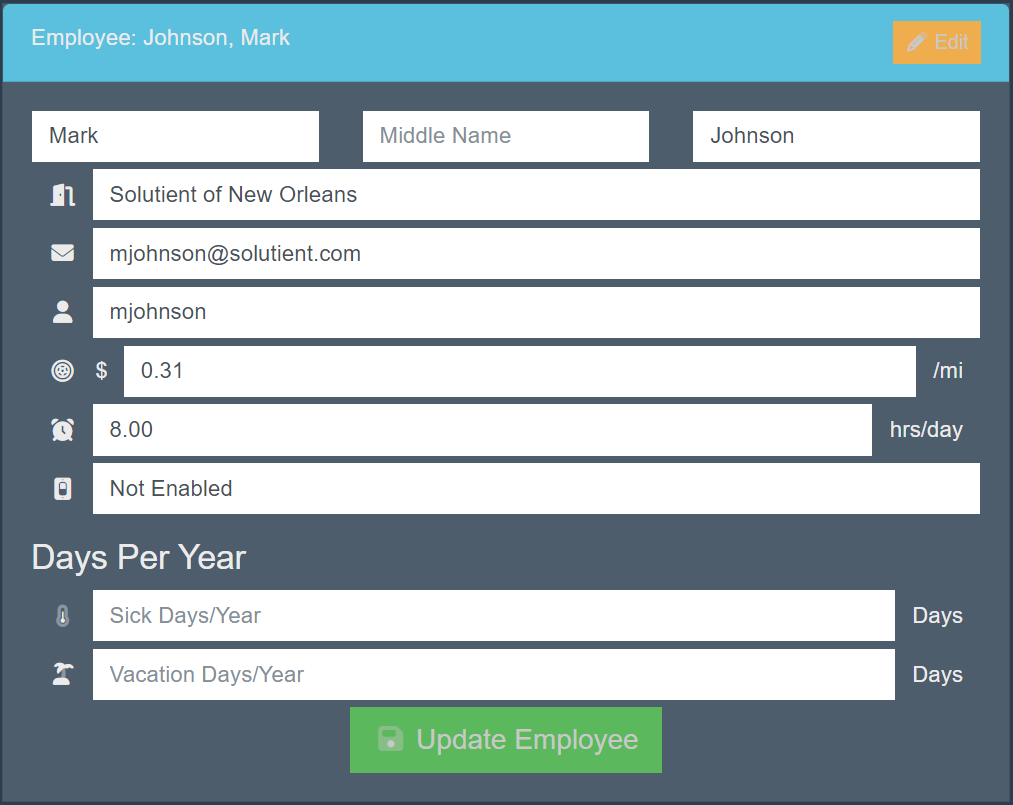
Select the box titled ‘Enabled’. A drop down will appear. Select ‘Not Enabled’.
Then, select the green button titled ‘Update Employee’.
]]>At the top of the page, select Employees. This will take you here:
Within the All Employees box, locate the search bar. Begin typing in the employees’ name. The list will start to eliminate other employees’ that do not match. For example:
Select the employee’s name. This will take you here:
Locate the box titled ‘Employee’. Then, select the orange button titled ‘Edit’. Your page will look like this:
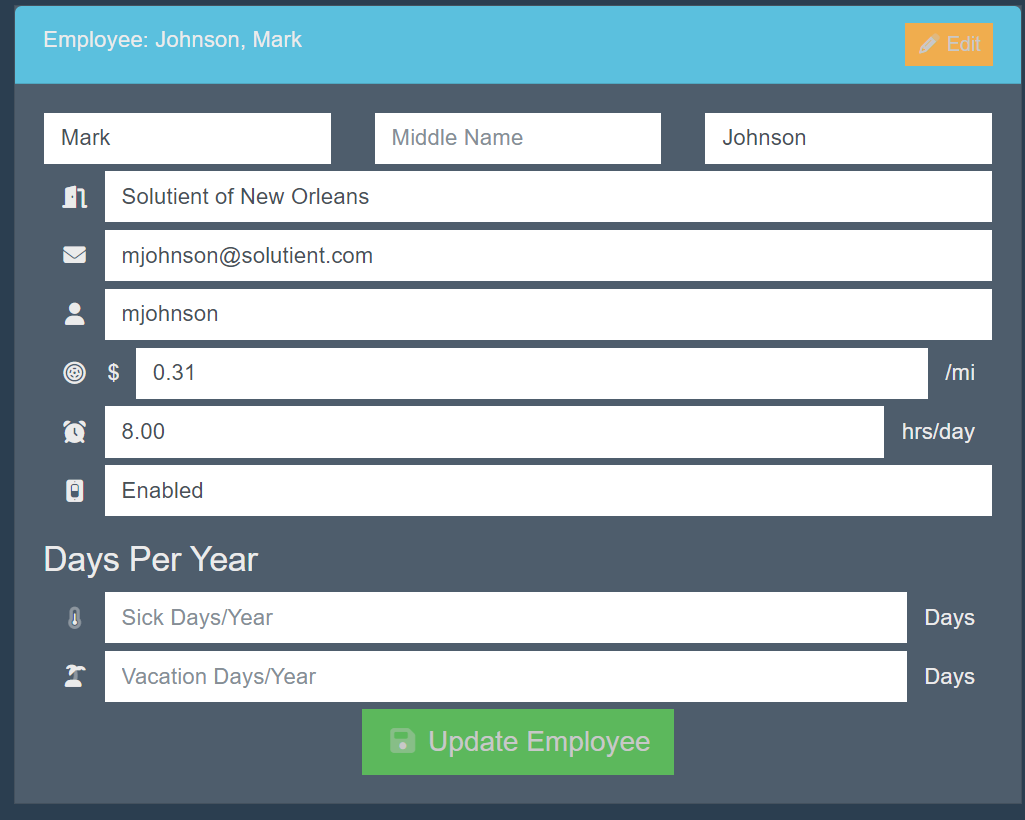
Select the box titled ‘Enabled’. A drop down will appear. Select ‘Not Enabled’.
Then, select the green button titled ‘Update Employee’.
]]>At the top of the page, select Employees. This will take you here:
Within the All Employees box, select the orange box titled ‘Inactive Employees’.
Then, locate the search bar. Begin typing in the employees’ name. The list will start to eliminate other employees’ that do not match. For example:
You can then select the employees’ name to access their account.
]]>At the top of the page, select Employees. This will take you here:
Within the All Employees box, locate the search bar. Begin typing in the employees’ name. The list will start to eliminate other employees’ that do not match. For example:
Select the employee’s name. This will take you here:
Locate the box titled ‘Employee’. Then, select the orange button titled ‘Edit’. Your page will look like this:
Fill in the following information:
- Name
- Office
- Login
- Mileage Rates
- Workday
- Status
Then, select the green button titled ‘Update Employee’.
]]>At the top of the page, select Employees. This will take you here:
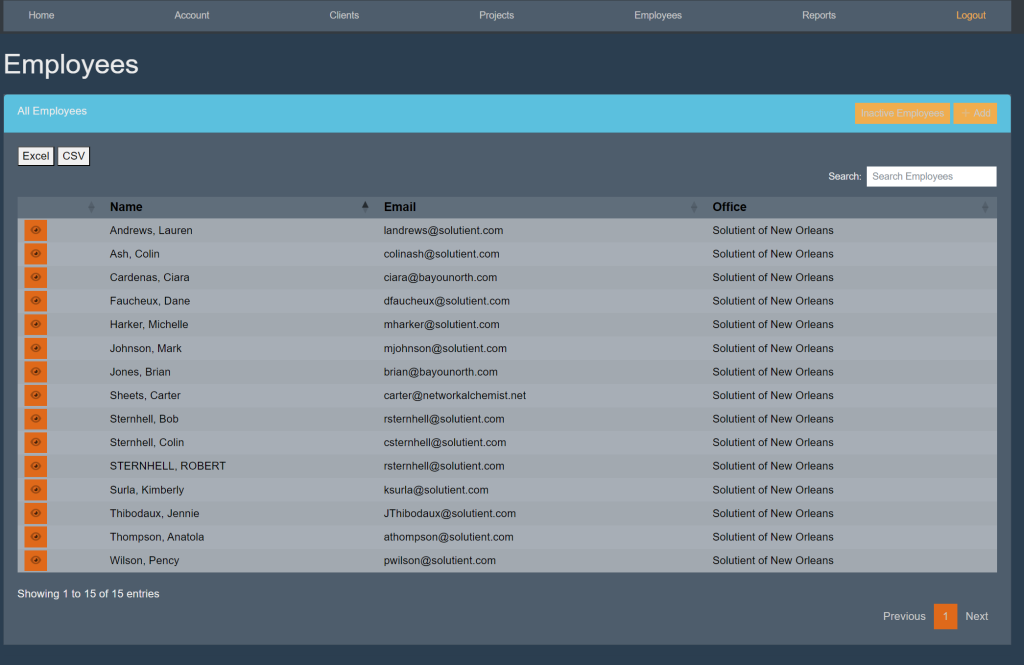
Within the All Employees box, select Excel or CSV. This will download a list onto your device.
]]>At the top of the page, select Employees. This will take you here:
Within the All Employees box, select the orange button titled +Add’ within the top right. This will take you here:
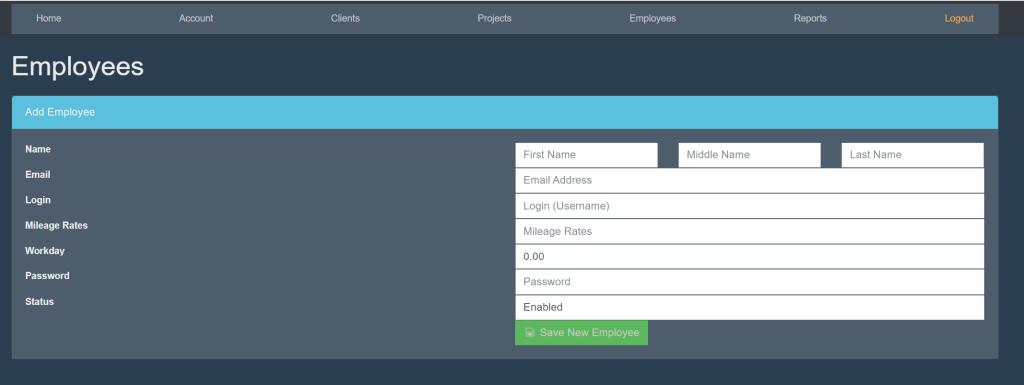
Fill in the following information:
- First/Middle/Last Name
- Login (Username)
- Mileage Rates
- Workday (The amount of hours that the employee will work daily)
- Password
- Status (If they are an active or inactive employee)
Then, select the green button titled ‘Save New Employee’.
]]>At the top of the page, select Employees. This will take you here:
Within the All Employees box, select the orange button titled ‘Inactive Employees’ within the top right.
]]>At the top of the page, select Employees. This will take you here:
At the top of the page, select Employees. This will take you here:
Within the All Employees box, locate the search bar. Begin typing in the employees’ name. The list will start to eliminate other employees’ that do not match. For example:
You can then select the employees’ name to access their account.
]]>