Notice: Function _load_textdomain_just_in_time was called incorrectly. Translation loading for the knowall domain was triggered too early. This is usually an indicator for some code in the plugin or theme running too early. Translations should be loaded at the init action or later. Please see Debugging in WordPress for more information. (This message was added in version 6.7.0.) in /home/c2guidesolutient/public_html/wp-includes/functions.php on line 6131

Warning: Cannot modify header information - headers already sent by (output started at /home/c2guidesolutient/public_html/wp-includes/functions.php:6131) in /home/c2guidesolutient/public_html/wp-includes/feed-rss2.php on line 8
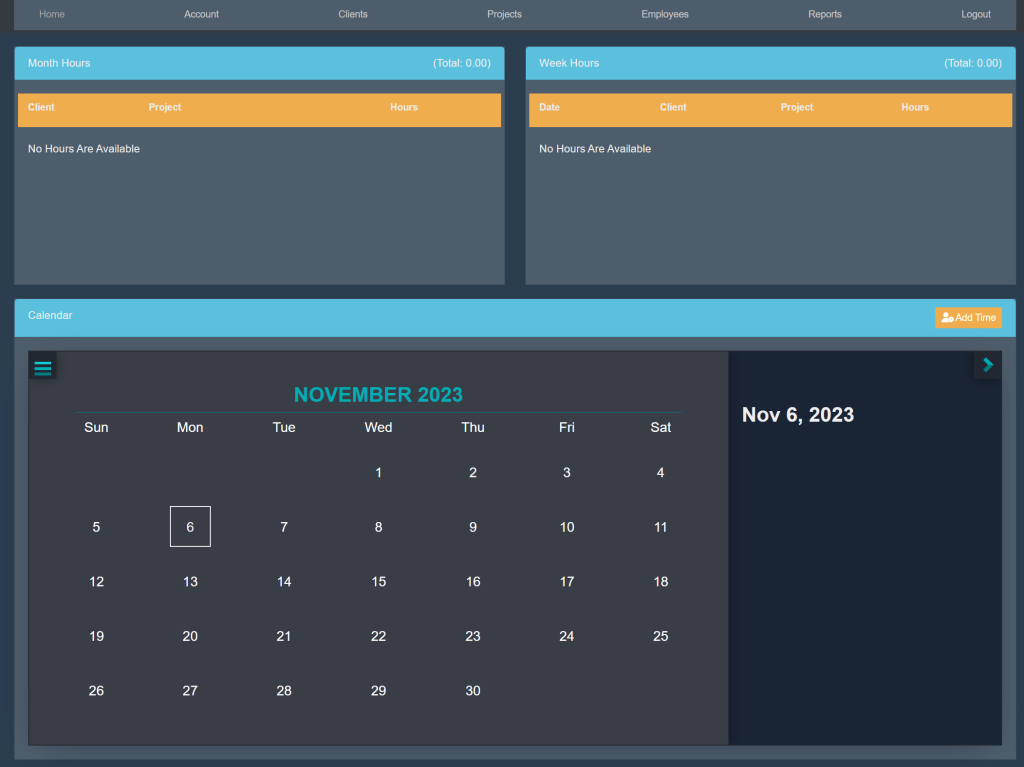
Clients – Solutient C2 – Help Guide https://c2.solutient.help Thu, 09 Nov 2023 18:43:02 +0000 en-US hourly 1 https://wordpress.org/?v=6.9.4 Activate A Client https://c2.solutient.help/knowledge-base/activate-a-client/ https://c2.solutient.help/knowledge-base/activate-a-client/#respond Thu, 09 Nov 2023 18:43:01 +0000 https://c2.solutient.help/?post_type=ht_kb&p=181 Sign into your account. This will take you here:

At the top of the page, select Clients. This will take you here:
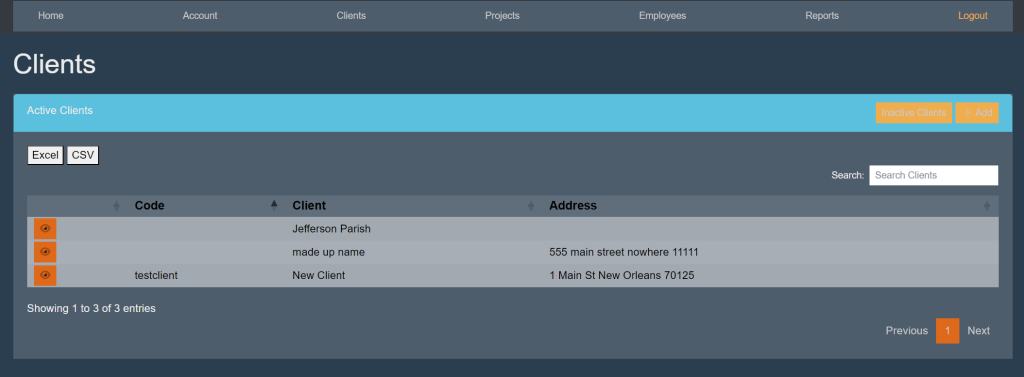
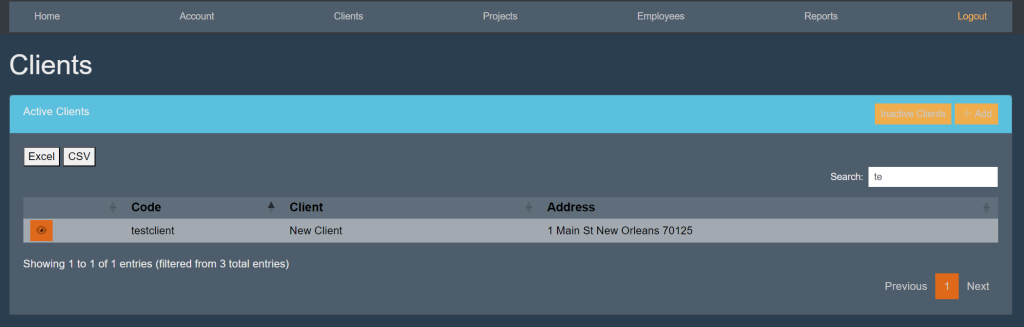
Within the Active Clients box, locate the search bar. Begin typing in the clients’ name. The list will start to eliminate other clients that do not match. For example:
Select the clients’ name to access their account. This will take you here:
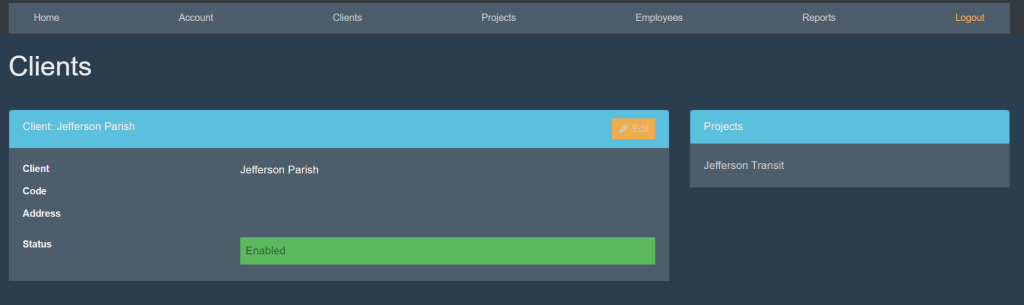
Within the box titled ‘Client’, select the orange ‘Edit’ button on the top right. Your page will look like this:
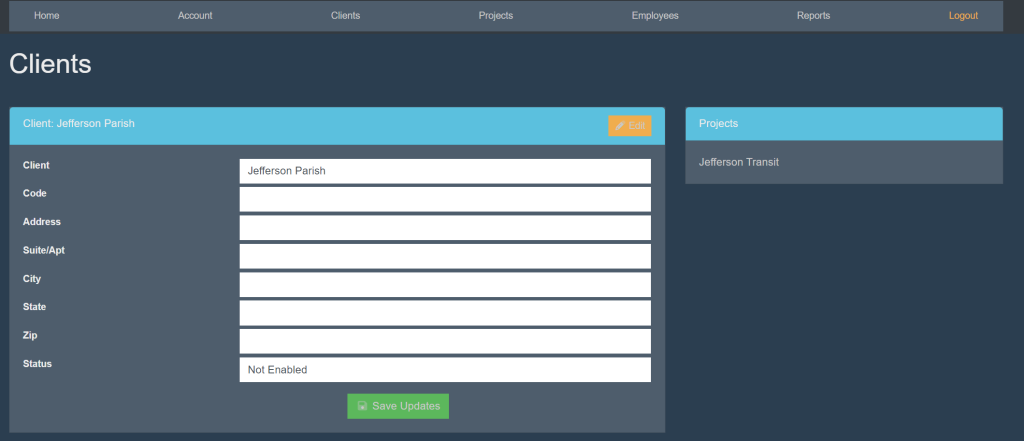
Next to status, select ‘Not Enabled’. A drop down will appear. Select ‘Enabled’. Then, select the green button titled ‘Save Updates’.

These are samples.

]]>
https://c2.solutient.help/knowledge-base/activate-a-client/feed/ 0
Deactivate A Client https://c2.solutient.help/knowledge-base/deactivate-a-client/ https://c2.solutient.help/knowledge-base/deactivate-a-client/#respond Thu, 09 Nov 2023 18:40:11 +0000 https://c2.solutient.help/?post_type=ht_kb&p=177 Sign into your account. This will take you here:

At the top of the page, select Clients. This will take you here:

Within the Active Clients box, locate the search bar. Begin typing in the clients’ name. The list will start to eliminate other clients that do not match. For example:

Select the clients’ name to access their account. This will take you here:

Within the box titled ‘Client’, select the orange ‘Edit’ button on the top right. Your page will look like this:
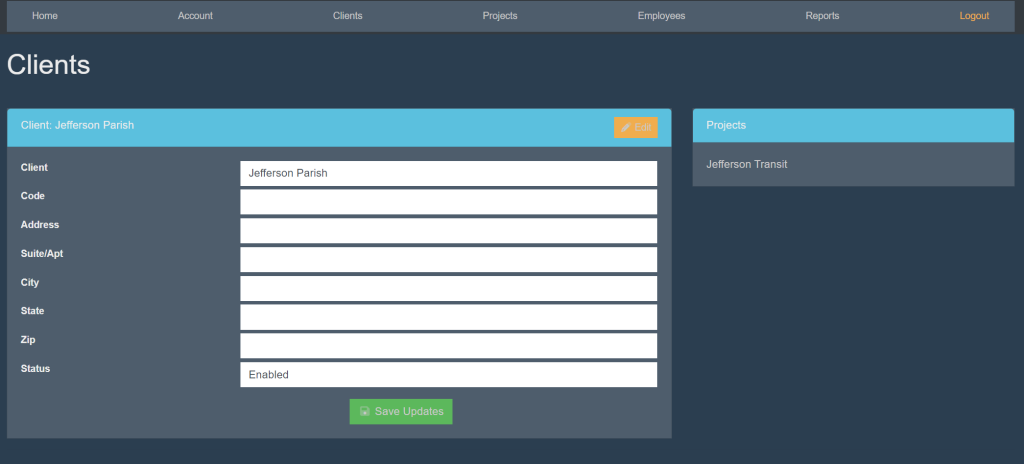
Next to status, select ‘Enabled’. A drop down will appear. Select ‘Not Enabled’. Then, select the green button titled ‘Save Updates’.

These are samples.

]]>
https://c2.solutient.help/knowledge-base/deactivate-a-client/feed/ 0
Search List Of Inactive Clients https://c2.solutient.help/knowledge-base/search-list-of-inactive-clients/ https://c2.solutient.help/knowledge-base/search-list-of-inactive-clients/#respond Thu, 09 Nov 2023 18:34:42 +0000 https://c2.solutient.help/?post_type=ht_kb&p=174 Sign into your account. This will take you here:

At the top of the page, select Clients. This will take you here:

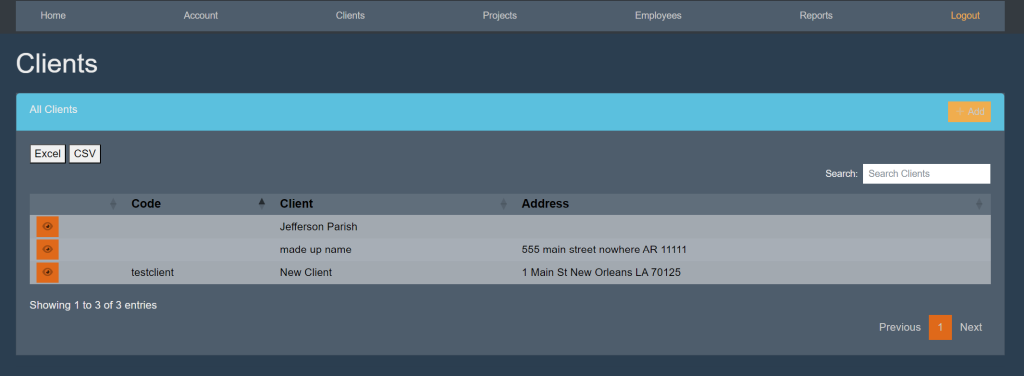
Within the Active Clients box, select the orange box at the top right titled ‘Inactive Clients’. Locate the search bar and begin typing in the clients’ name.

The list will start to eliminate other clients that do not match. For example:
]]>
https://c2.solutient.help/knowledge-base/search-list-of-inactive-clients/feed/ 0
How To Edit Client Information https://c2.solutient.help/knowledge-base/how-to-edit-client-information/ https://c2.solutient.help/knowledge-base/how-to-edit-client-information/#respond Wed, 08 Nov 2023 16:27:10 +0000 https://c2.solutient.help/?post_type=ht_kb&p=109 Sign into your account. This will take you here:

At the top of the page, select Clients. This will take you here:

Select the client that you wish to edit. This will take you here:
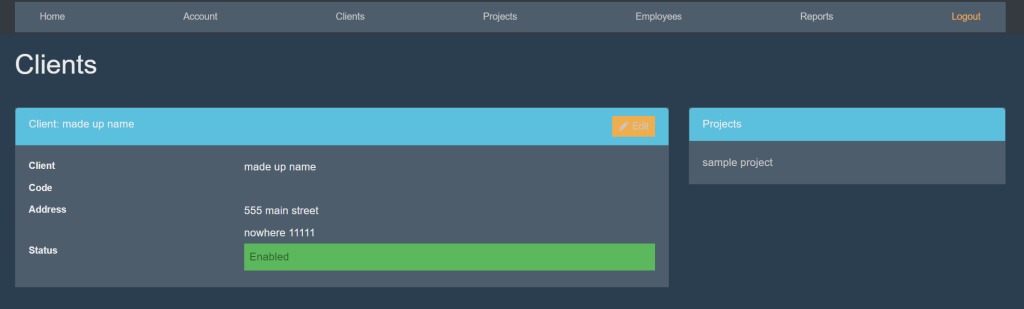
Within the Client: [Name] box, select the orange button titled Edit. This will take you here:
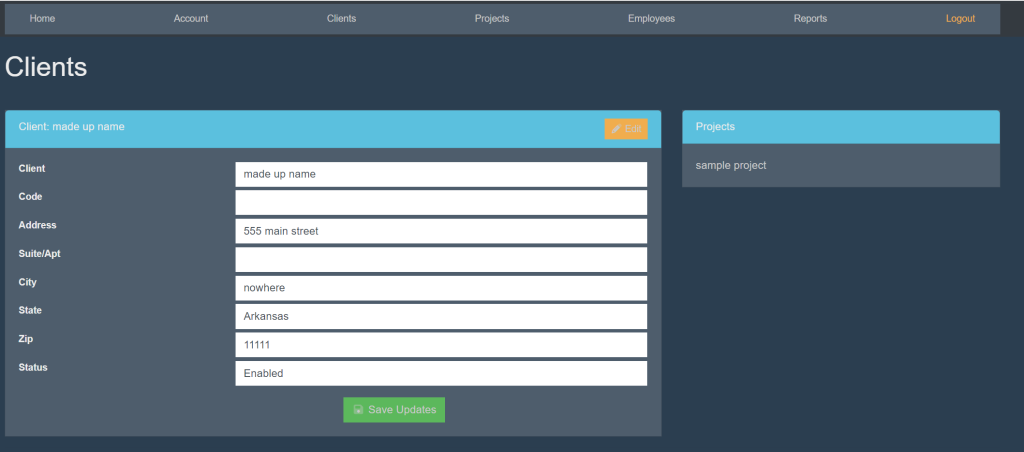
You can then, change the client information. When finished, select the green button titled ‘Save Updates’.

These are samples.

]]>
https://c2.solutient.help/knowledge-base/how-to-edit-client-information/feed/ 0
Add A New Client https://c2.solutient.help/knowledge-base/add-a-new-client/ https://c2.solutient.help/knowledge-base/add-a-new-client/#respond Tue, 07 Nov 2023 18:31:53 +0000 https://c2.solutient.help/?post_type=ht_kb&p=75 Sign into your account. This will take you here:

At the top of the page, select Clients. This will take you here:

Within the Active Clients box, select the orange button titled +Add. This will take you here:
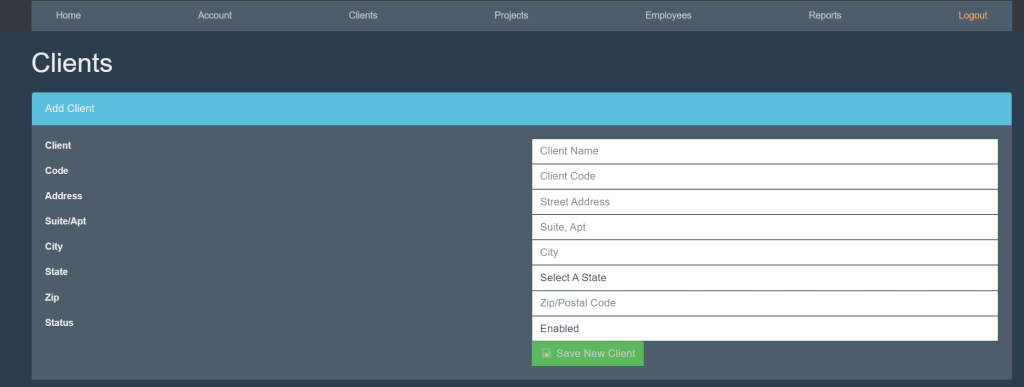
Fill in the following information:

  • Client
  • Code
  • Address
  • Suite/Apt
  • City
  • State
  • Zip
  • Status

Then, select the green button titled Save New Client.

]]>
https://c2.solutient.help/knowledge-base/add-a-new-client/feed/ 0
View Active Clients https://c2.solutient.help/knowledge-base/view-active-clients/ https://c2.solutient.help/knowledge-base/view-active-clients/#respond Tue, 07 Nov 2023 18:29:12 +0000 https://c2.solutient.help/?post_type=ht_kb&p=73 Sign into your account. This will take you here:

At the top of the page, select Clients. This will take you here:

These are samples.

]]>
https://c2.solutient.help/knowledge-base/view-active-clients/feed/ 0
Import Client List Into Excel/CSV https://c2.solutient.help/knowledge-base/import-client-list-into-excel-csv/ https://c2.solutient.help/knowledge-base/import-client-list-into-excel-csv/#respond Tue, 07 Nov 2023 18:27:28 +0000 https://c2.solutient.help/?post_type=ht_kb&p=71 Sign into your account. This will take you here:

At the top of the page, select Clients. This will take you here:

Within the Active Clients box, select Excel or CSV. This will begin a download onto your device.

These are samples.

]]>
https://c2.solutient.help/knowledge-base/import-client-list-into-excel-csv/feed/ 0
View Inactive Clients https://c2.solutient.help/knowledge-base/view-inactive-clients/ https://c2.solutient.help/knowledge-base/view-inactive-clients/#respond Tue, 07 Nov 2023 18:23:26 +0000 https://c2.solutient.help/?post_type=ht_kb&p=69 Sign into your account. This will take you here:

At the top of the page, select Clients. This will take you here:

Within the Active Clients box, select the orange button titled Inactive Clients.

These are samples.

]]>
https://c2.solutient.help/knowledge-base/view-inactive-clients/feed/ 0
Search List Of Active Clients https://c2.solutient.help/knowledge-base/search-list-of-clients-from-the-clients-page/ https://c2.solutient.help/knowledge-base/search-list-of-clients-from-the-clients-page/#respond Tue, 07 Nov 2023 18:19:04 +0000 https://c2.solutient.help/?post_type=ht_kb&p=64 Sign into your account. This will take you here:

At the top of the page, select Clients. This will take you here:

Within the Active Clients box, locate the search bar. Begin typing in the clients’ name. The list will start to eliminate other clients that do not match. For example:

You can then select the clients’ name to access their account.

These are samples.

]]>
https://c2.solutient.help/knowledge-base/search-list-of-clients-from-the-clients-page/feed/ 0